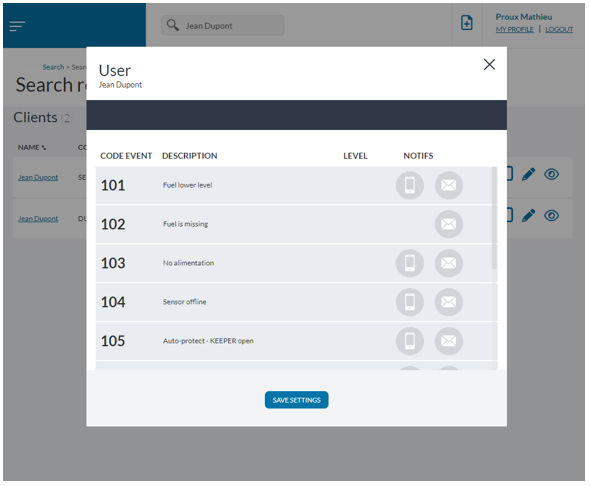
When an event is triggered, it appears in real time:
- on the dashboard
- in the list of alerts
- an email and/or an SMS is sent according to the settings
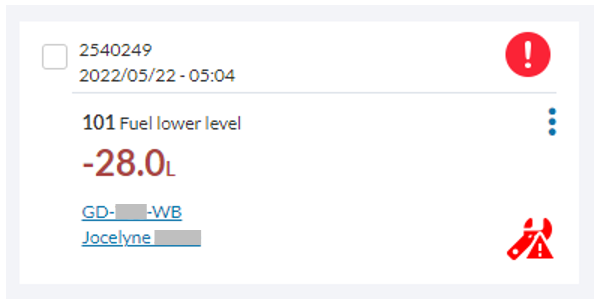
Each event is composed of several characteristics related to its typology. We find the following information:
– the date and time when the alert was triggered
– the typology of the alert and its color code
– the vehicle and the driver concerned
– the volume in case of increase or decrease
Below is an example of an abnormal fuel drop event:
It is possible to access more information about the event by clicking on it from the list. A window then opens, and offers the possibility to perform the following actions:
- Open an action on the event
In the event that an event requires investigation, it is possible to initiate an action while leaving a comment in the field provided for this purpose. The event will then be embellished with an icon to identify the action in progress
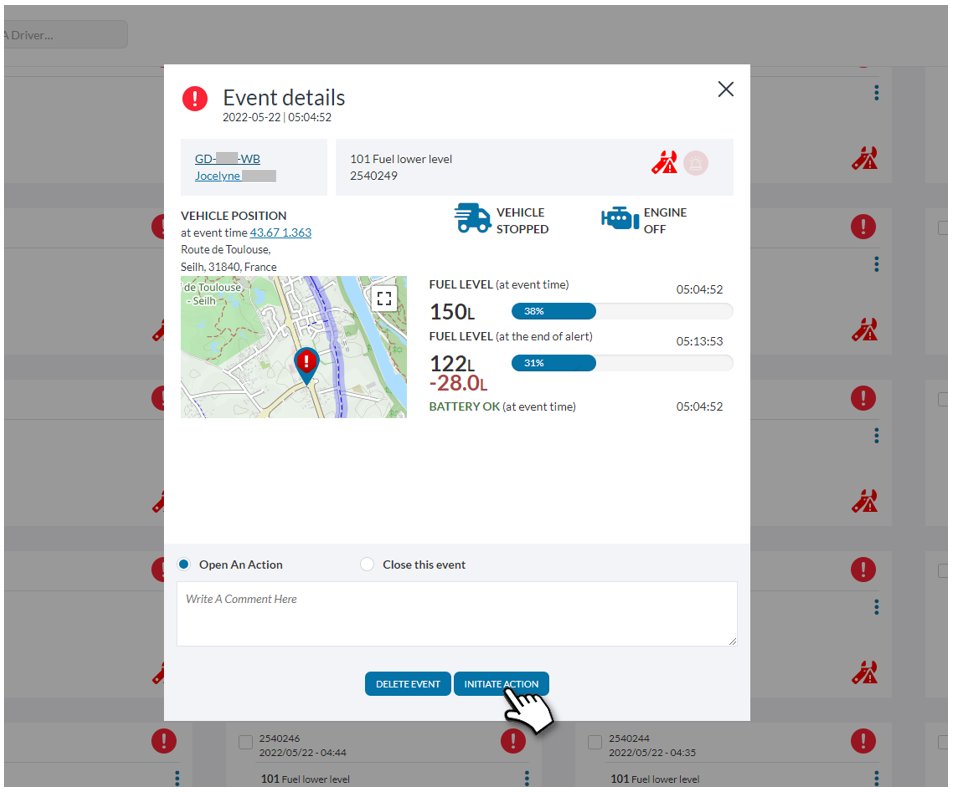
- Close event
When the event is identified or no further investigation is required, the user can close the event, which will change the color scheme of the event and decrement the counter of new events in the menu bar.
KEEPER events
There are a total of 8 alerts for which a user can receive a notification:
- 101 – Abnormal low fuel
This alert is the main one, and corresponds to an abnormal drop which may be due to siphoning, a leak, etc. - 102 – Abnormal gap on filling
When a discrepancy between the fuel tickets entered and the full tank is detected, this alert appears (signifying a potential diversion) - 103 – Power cut
When the KEEPER is no longer powered (power cut or vehicle battery + flat emergency battery) this alert notifies the user - 104 – KEEPER not connected (Probe)
Just like the previous alert, if the connection between the probe and the KEEPER is broken (disconnection, tearing,…) this alert appears - 105 – Tamper – case opening
Opening the box is considered an intrusion on the device and therefore generates an alert - 106 – Lost Connection
This alert appears when connection is lost or incomplete messages - 108 – Backup battery below 30%
The KEEPER’s backup battery allows asynchronous storage and sending of data and guarantees its operation in the event of a power failure. The battery is automatically recharged using the vehicle’s battery - 109 – High fuel level
This alert notifies in the event of an increase in fuel in the tank, in particular during a full tank for example
Personal settings
To configure your personal notifications, click on the link[MON PROFIL] at the top right of the page then select the second tab[PARAMÈTRES] . You can choose for each event the mode of notifications but also modify the color code of display and the level of the events.
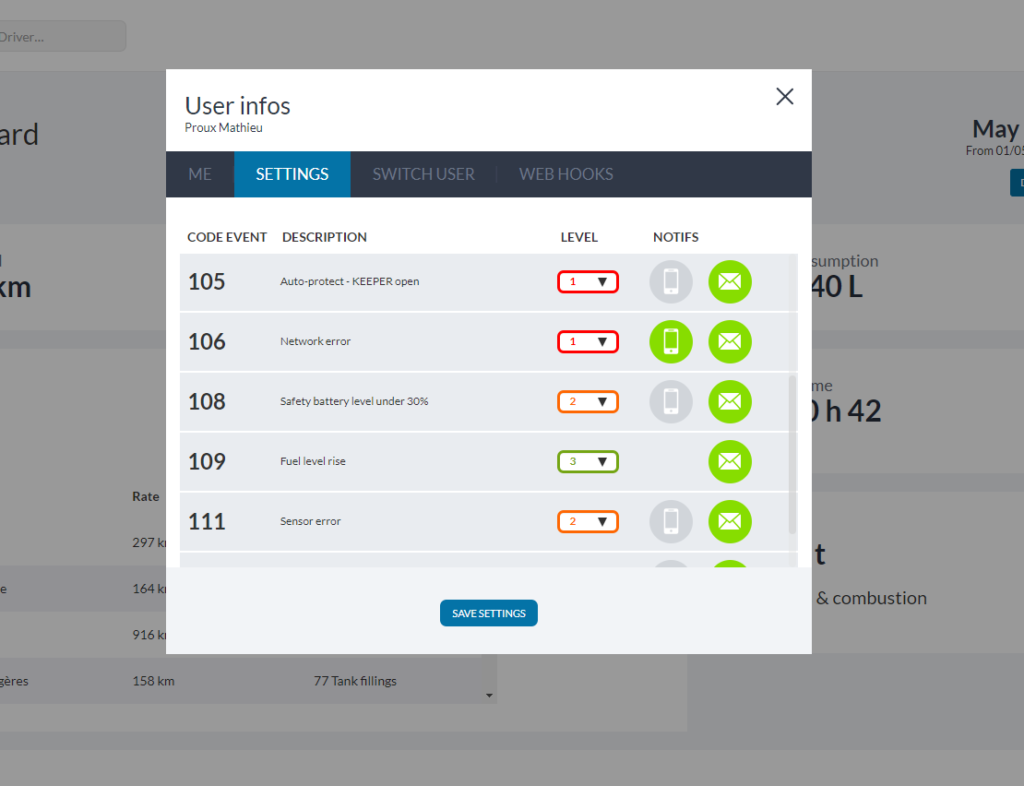
Driver settings
Since drivers do not have access to the platform, it is up to the fleet manager to configure their notifications. To do this, from the list of users, click on the message icon at the end of the line of the user to modify. This setting is applicable to all accounts with lower rights levels.